
INSTALLING CSCALP IN 3 STEPS
Thank you for your interest in CScalp! We sent you an email. Let me tell you how to start trading via CScalp in 3 simple steps. If you prefer a video instead of text, here’s a video tutorial.
Download and install CScalp
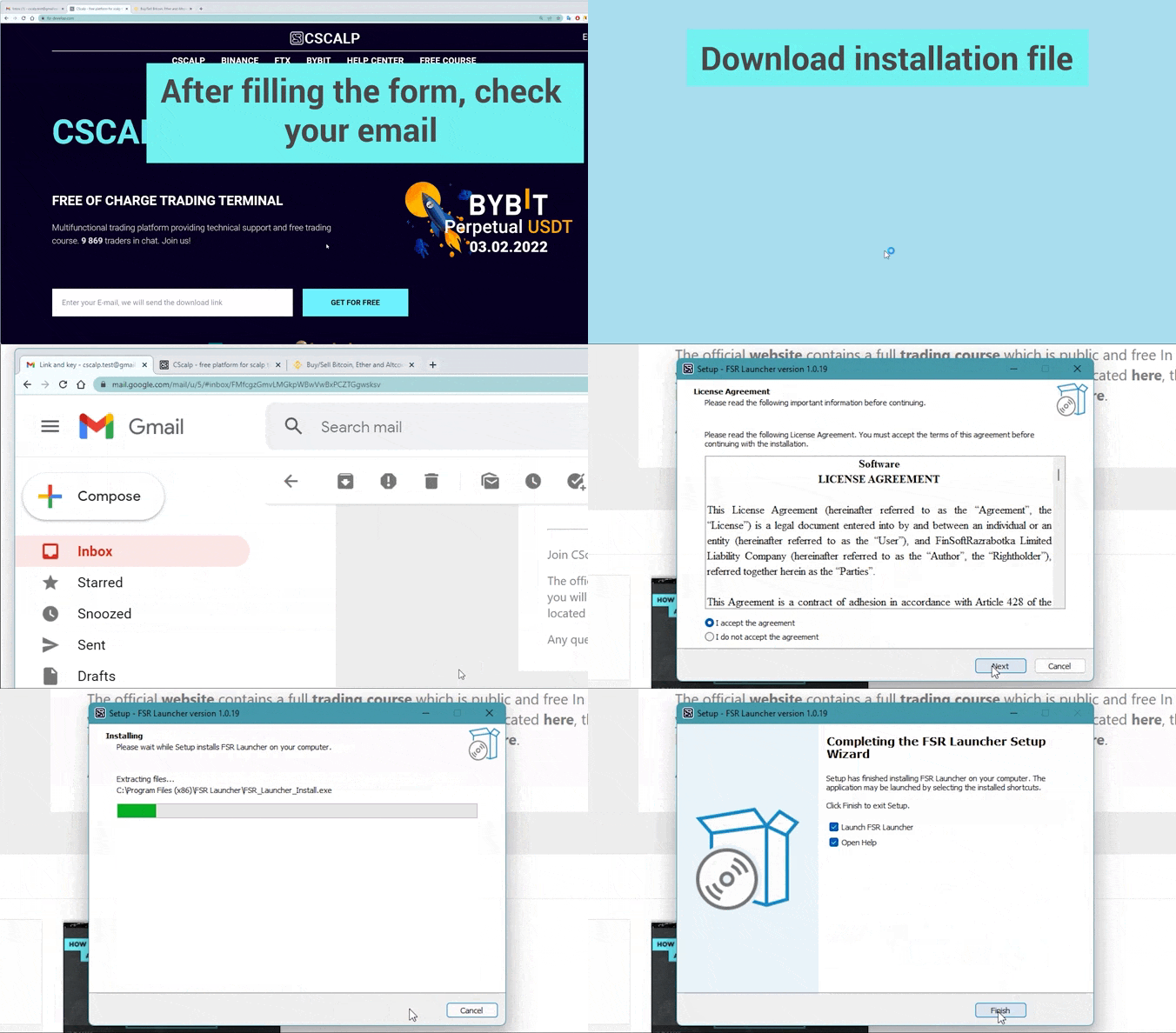
After receiving the email, download the installation file by clicking “Download CScalp” button. Also download the license file from the email (you will find it in attachments). Save it to the desktop, because you will need it at step 2.
Run FSR_Launcher_install.exe installation file and follow the standard installation procedure. First step is complete!
Paste the license file
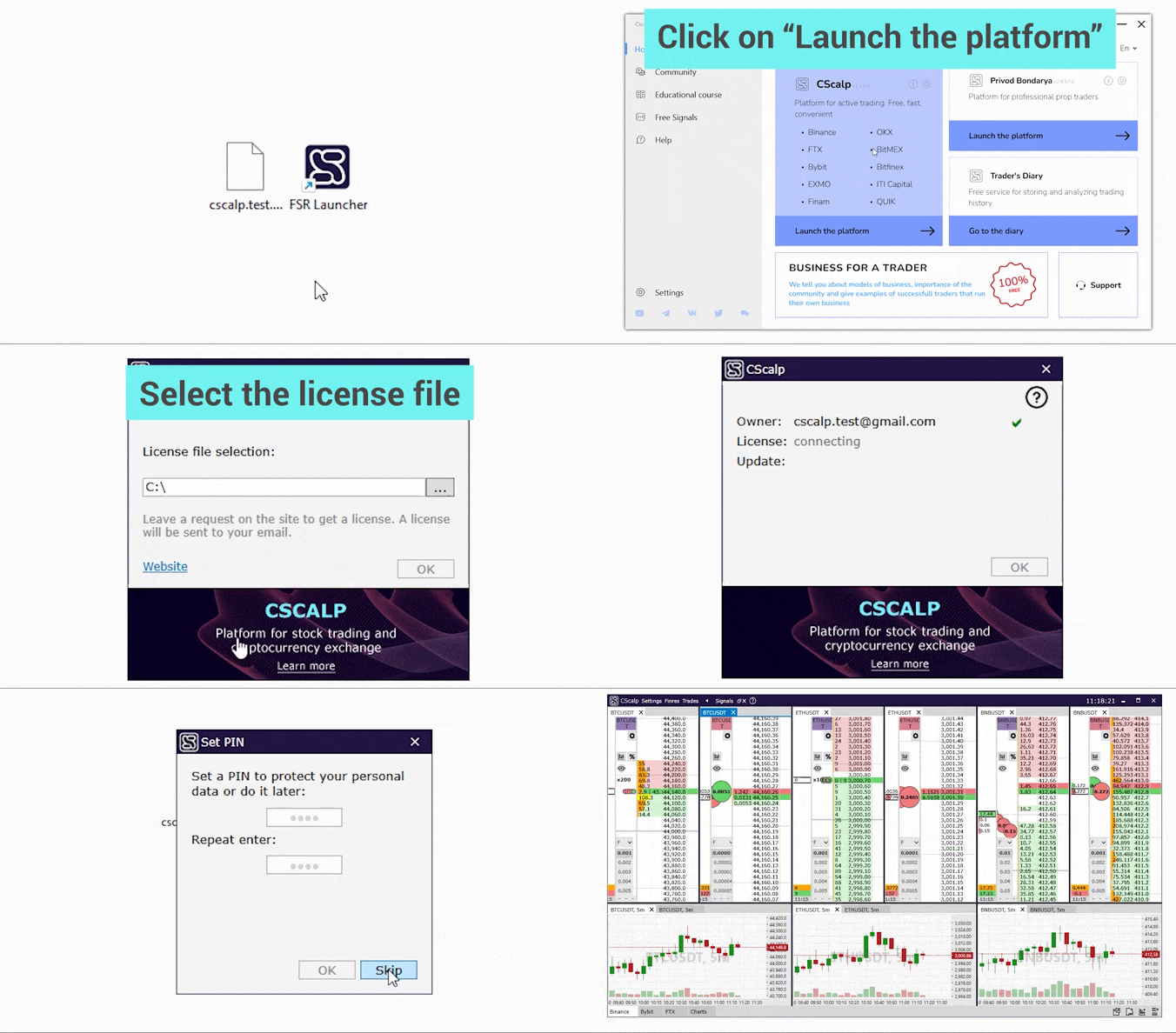
Click the FSR Launcher shortcut and start the app. Start CScalp using FSR Launcher.
The application will request a license file. Click “…” and specify the path to the license file you saved earlier. Then click OK.
Connect to the Exchange
In the top CScalp menu, click Settings, and then click the Connections tab. Select the specified exchange and click on the gear icon near it. The connection settings will be opened.
Create API keys in your personal account and enter them in the specified fields. Don’t worry about the security, CScalp encrypts API keys twice and stores them only on your computer.

Disable “View mode” and click on the exchange logo. The connection will be turned green, that means CScalp has successfully connected to the exchange. Congratulations, installation is complete. You can start trading!
Detailed step-by-step directions for CScalp can be read here. A free trading course from CScalp is here.
If you have questions about some issues, contact support. During working hours, support assistant will respond you within an hour.